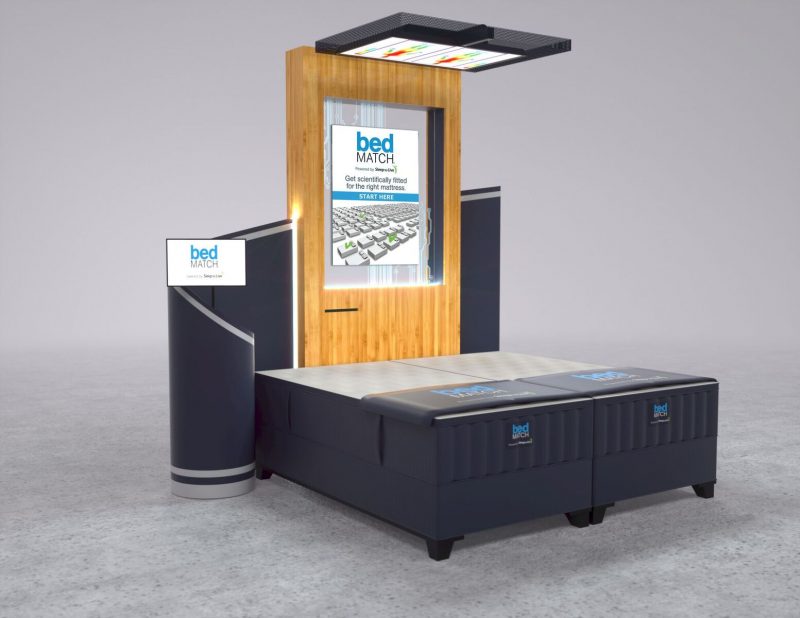
Bedmatch Software Management
This guide will help you use the tools embedded in the new Bedmatch software to effectively manage, update, and adjust the software.
Contents (Jump ahead to sections)
Close Software
- Click or touch anywhere on screensaver
- Select any consultant name, or select the ‘Test’ button
- On the Name Input screen, type ‘Close App’
- Select ‘Enter’
Activate a New Location
2021.1.1 Software (+previous versions)
- On Inside.bedmatch.com, select the ‘Settings’ tab for the Location to be activated
- Select the yellow lightning bolt in the green circle
to get a Temporary Activation Id – copy the Id
- Close the bedMatch software – use ‘Close Software’ steps
- Open Firefox Browser
- Type in ‘http://localhost/kiosk/location/activate’ in the address bar and press ‘Enter’
- Enter the Activation Id in the “Activation’ box and press the Activation button
- Close the Browser and reopen the bedMatch software
2021.2.0 Software (and above)
- On Inside.bedmatch.com, select the ‘Settings’ tab for the Location to be activated
- Select the yellow lightning bolt in the green circle
to get a Temporary Activation Id – copy the Id
- Click or touch anywhere on screensaver in bedMatch Software
- Select any consultant name, or select the ‘Test’ button
- On the Name Input screen, type ‘Activate’
- Type in the Activation ID
- Select ‘Enter’
- If you need to verify the Location, you can use the ‘Identify Location’ steps
Identify Location
- Click or touch anywhere on screensaver
- Select any consultant name, or select the ‘Test’ button
- On the Name Input screen, type ‘Location’
- Select ‘Enter’ and Location information will show
- Select reset
when finished to go back to the screen saver
Sync App
- Click or touch anywhere on screensaver
- Select any consultant name, or select the ‘Test’ button
- On the Name Input screen, type ‘App Sync’
- Select ‘Enter’
Adjust Camera Settings – (InProgress)
- Click or touch anywhere on screensaver
- Select any consultant name, or select the ‘Test’ button
- On the Name Input screen, type ‘App Settings’
- Select ‘Enter’
Now that you have reviewed our troubleshooting guide, please review the rep FAQs and user guide, and let us know if you have any more questions.